
Workflow and steps
A workflow defines the steps a task goes through and who must confirm the work at each step. Configure it for a form on the Steps tab. For example, a request can move from review to completion.
Each step has a name, a responsible assignee, and optional approvers. The task moves forward once all assignments at the current step are confirmed, including both the responsible assignee and the configured approvers.
A two-step example
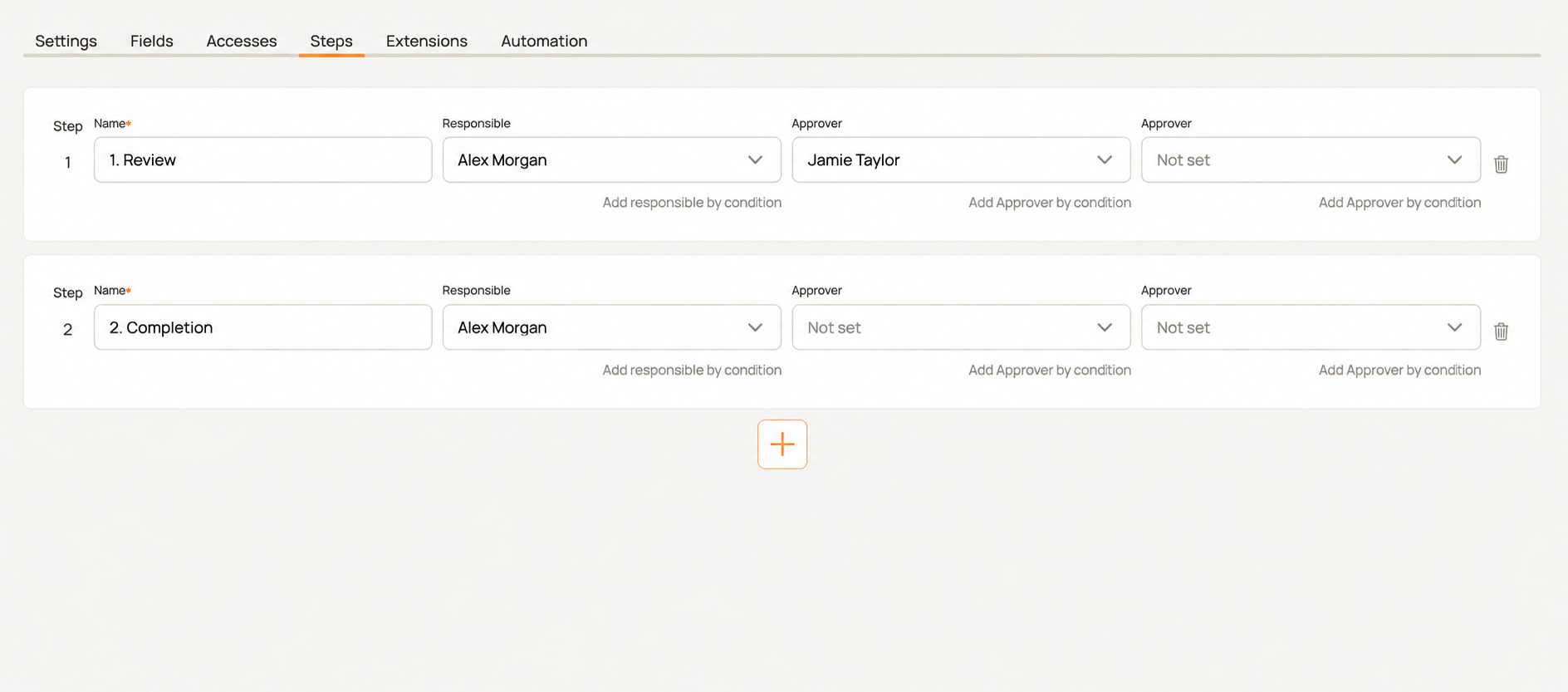
Illustrative example based on the HCAPP interface. Alex Morgan and Jamie Taylor are fictional names.
| Step | Responsible | Approver | What happens |
|---|---|---|---|
| 1. Review | Alex Morgan | Jamie Taylor | Alex checks the data and Jamie approves the result. Both confirmations are needed to proceed. |
| 2. Completion | Alex Morgan | Not set | Alex completes the remaining work and confirms the step. Finishing the task requires the relevant rights. |
A simple process can use one step with a responsible assignee. Add steps when work changes hands, needs a separate check, or enters another stage.
Step settings
- Name: a clear action or stage, such as Review, Fulfilment, or Payment approval.
- Responsible: who carries out the work at this step.
- Approver: who additionally checks and confirms the result. The illustrated screen has two approver slots; leave unused ones as Not set.
- Add responsible by condition and Add Approver by condition: rules that choose a person based on task data.
The card order defines the step sequence. Use + to add a step and the trash icon to remove it from the workflow configuration. A number in a name, such as “1. Review”, is a readable label rather than a separate transition rule.
Who can be assigned
| Selection | When to use it |
|---|---|
| A specific user | A particular employee always performs or approves this work. |
| Author | The task creator should handle this assignment. |
| Responsible | Use the task's current responsible user, falling back to the author if none is assigned. |
| Department | Send work to the group of users in a selected department. |
| Position | Choose assignees by their job position. |
| User status | Select users with that status from people who already have access to the task. |
Status in the assignee selector refers to a user's status, not the workflow step or the task's status field. Use a condition if assignment should depend on a task field value.
Selecting a department, position, or other group creates a group assignment, not a separate confirmation requirement for every member. For a group responsible assignment, a specific user first takes responsibility, for example by assigning the task to themselves, and then confirms the work. If several people must independently approve, configure separate approver assignments.
Assignees need access to the form. Before using the workflow, make sure departments, positions, and statuses are populated and resolve to the intended people. Workflow assignments do not replace access settings.
Conditional assignments
Choose Add responsible by condition or Add Approver by condition, select a user, and define a condition based on the author or a task field value.
For example, an order amount greater than 1,000 assigns Jamie Taylor as approver; otherwise, the default approver in the step card is used. The first matching condition wins. If no condition matches, the default assignment is used.
This routes work by amount, author, or another supported value without creating separate workflows for each case. Conditions select the assignee when a step assignment is created; they do not immediately move the task between steps.
Moving to the next step
- Entering a step creates its assignments from the configured rules.
- The responsible assignee performs the work and confirms their assignment.
- Each assigned approver confirms their assignment. The step remains incomplete while any assignment is unconfirmed.
- Once all are confirmed, the task moves to the next step that still needs confirmation.
In the example, Alex's confirmation alone does not complete Review: Jamie must also confirm. Saving fields or posting an ordinary comment does not replace step confirmation.
When no steps remain awaiting confirmation, the task finishes. The user whose action finishes it needs close rights, such as Update, close, configured under form access.
Returning for reapproval
If information changes after review, you can return the task to a specific earlier step rather than only going back one step.
- Open the task and expand its step list.
- Find the earlier step and the person's assignment that needs renewed confirmation.
- Use the repeat-request action for that assignment. The task returns to its step and the selected confirmation is cleared.
- After the changes are addressed, the assignee confirms again.
For example, if the amount changes during Completion, return to Jamie's approval in Review to check the revised terms.
Returning clears the selected confirmation, not every approval in the workflow. Other confirmations remain. Fully confirmed steps can be skipped when the task proceeds again; request renewed confirmation for each relevant assignment if several people must review the change.
Fields at different steps
Field settings connect data entry to the workflow:
- Visible on step: where the field is displayed.
- Required on step: where a value is required.
- Immutable from step: from which steps editing is disabled.
For example, enter the amount during review and make it read-only after approval. See shared field settings.
Configure a workflow
- Open the form settings → Steps.
- Add one or more steps with + and enter their names.
- Choose the responsible assignee for each step.
- Add approvers and conditional assignments where needed.
- Align the workflow with user access and field settings.
- Click Save.
To review your configuration, walk through an example task: confirm the first step's assignments, check the move to the second step, and return it for the required reapproval.