
Extensions
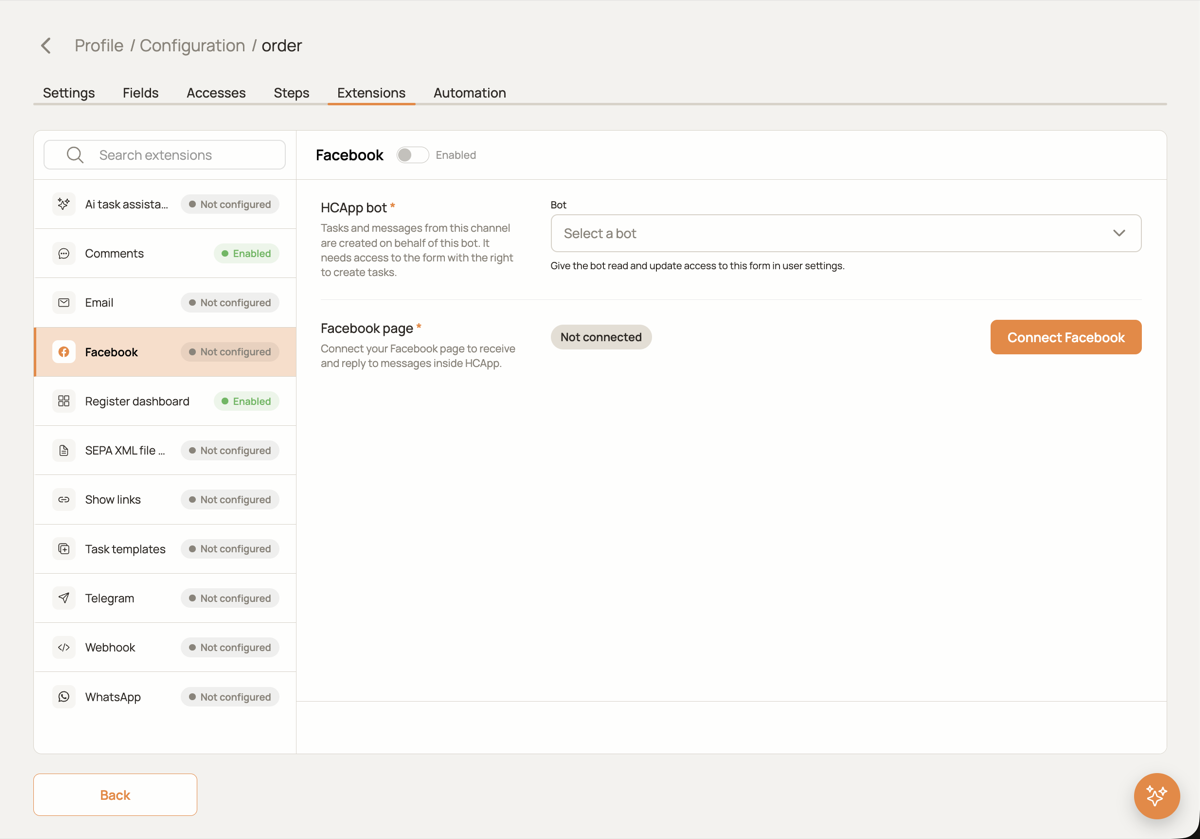
An extension adds a capability to one form. Extensions are enabled per form in the form's Extensions tab, each in its own card with a toggle, settings and a Save button.
| Extension | What it does |
|---|---|
| Calendar | Tasks by month, week and day with resource/specialist filters, see Calendar |
| Comments | Internal discussion of a task between employees, invisible to clients, see Comments |
| A mailbox of the form: incoming e-mails become tasks, replies are sent from the task, see Email | |
| Telegram | A Telegram bot: messages from clients become tasks, see Telegram |
| A WhatsApp Business number: messages become tasks, see WhatsApp | |
| Messages to a Facebook page become tasks, see Facebook | |
| AI assistant | AI fills the form for you: it reads an attached invoice, receipt or order (or the text of a message) and puts the amounts, dates, numbers and names into the fields you choose, see AI assistant |
| Webhook | Calls your URL when a task is created, updated or finished, see Webhook |
| Dashboard | Summary numbers and charts for the form |
| SEPA XML | Generates a SEPA payment file from tasks, see SEPA XML |
| Task templates | Ready-made task presets |
Messaging channels and the bot
Telegram, WhatsApp and Facebook are messaging channels. They have a few things in common:
- Every channel works on behalf of an HCAPP bot: a user with the role
BOTthat has access to the form with the right to create tasks. Tasks and incoming messages are created by this bot, so every record has an owner, and the bot's webhook receives the channel events. Pick an existing bot or create one right in the channel settings. - The customer stays visible: the sender's name and account are stored with the message and shown in the task feed, the bot only owns the record.
- Who handles the task is decided by the form's workflow: the responsible is assigned by the step rules, for example by the sender field.
Two modes
| Mode | What happens | When to use |
|---|---|---|
| Chat | A chat is tied to one open task. Everything the customer writes goes to that task until it is finished; operators answer from the task and the reply goes back to the messenger. | Support, sales dialogues |
| Each message = new task | Receive only. Every message opens its own task. Options: accept only messages with a file; store files in the message, in the task files or in a Files field of the form. | Invoices, documents, photo reports that each need their own task |
In the second mode files are downloaded before the task is created, so the AI assistant that runs on task creation already sees them.
How to enable an extension
- Open the form → Extensions tab and pick the extension.
- Fill in its settings and press Save. For channels HCAPP checks the credentials at this moment and shows an error if something is wrong.
- Switch the Enabled toggle on.
Errors that happen later (a message could not be delivered, a file could not be downloaded) are shown in the extension card under Last error.