
Form: structure and logic
This section explains what a form is in the system, what it consists of, and how an administrator manages it through tabs.
1. What is a form (task register)
A form is a container for tasks and their data. It defines:
- field structure (what data to store),
- workflow logic (steps),
- access rules (who can do what),
- additional features (extensions),
- display in the task list (columns, title).
2. What a form consists of (as it looks in the UI)
Form settings tabs
- Settings — base form parameters and task title settings.
- Template (fields) — list of form fields and their parameters.
- Access — access rules and permissions.
- Routes (steps) — execution steps / route.
- Extensions — extensions (email, webhook, etc.).

3. Base form settings (Settings)
Form fields:
name— form name.icon,icon_color— visual icon and color.folder_id— folder where the form is stored.
Task title settings (settings.task_title):
icon— show icon.form_name— add form name to the title.task_id— add task ID.custom_title— custom title prefix.
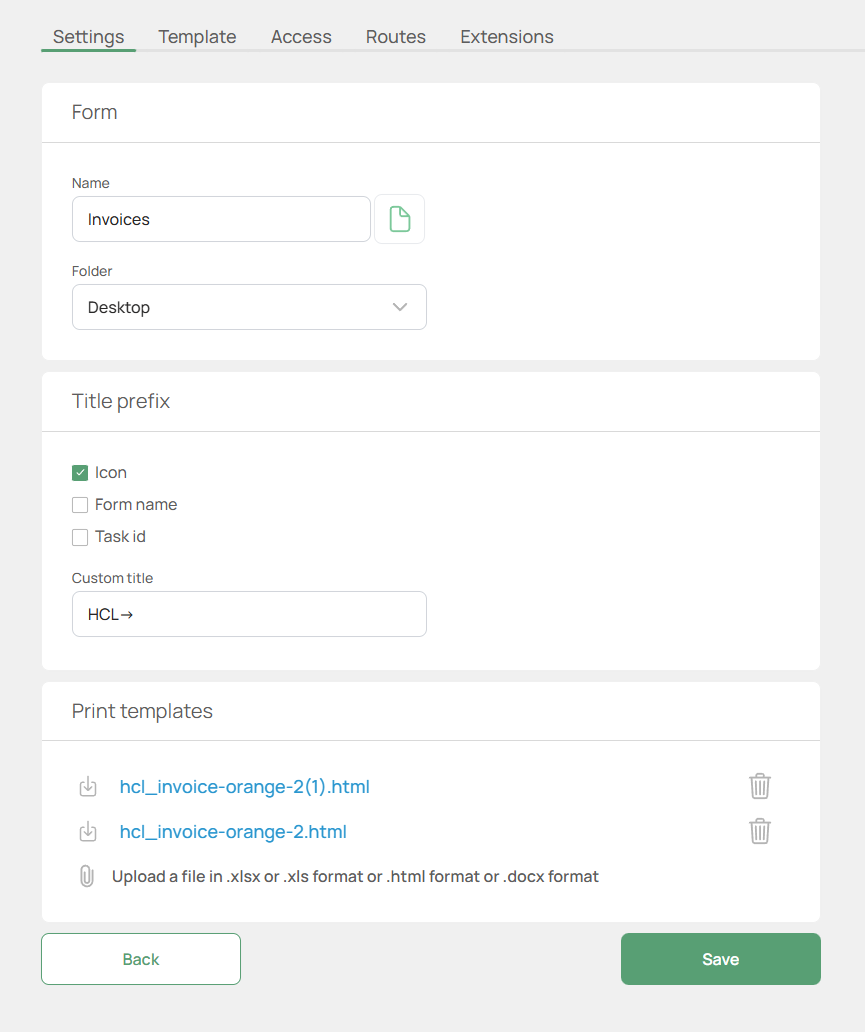
Print templates:
Print templates are custom templates used to output a task to a file (PDF) or for printing.
Supported formats: .html, .xlsx, .xls, .docx
How it works:
- each template is attached to a specific form,
- when printing or exporting a task, the system injects task data into the selected template,
- the template defines the document look (structure, styles, branding),
- a form can have multiple print templates,
- templates can be added or removed without changing the form structure,
- changing a template does not affect task data, only the output format.
4. Columns in the task register (settings.columns_order)
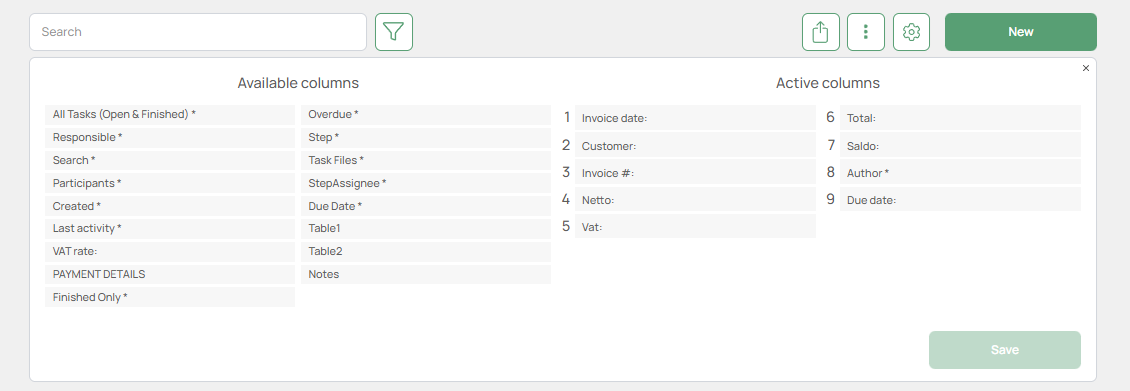
A form stores the order of columns shown in the task register.
- Column management is available only to users with ADMIN or SUPER-ADMIN rights.
- Columns are configured in the task register by clicking the button
(to the left of the create task button) - The left side shows available columns, the right side shows active (visible) columns.
- Drag a column to Active columns and click Save.
5. Form fields (Template)
The Template tab is used to configure the form fields:
- add and remove fields,
- manage order,
- visibility and required conditions.
👉 Details: Form fields setup
6. Access
The Access tab is used to configure task permissions for this form.
A form supports access:
- by users,
- by departments,
- by positions,
- with specific rights (read / update / export, etc.),
- with extra conditions (if supported by the UI).
👉 Details: Form access
[SCR: Access tab]
7. Steps (Routes)
The Steps tab configures the execution route for form tasks.
Steps define:
- stage name,
- position in the route,
- assignees and approvers,
- transition or assignment rules (if supported by the UI).
👉 Details: Steps configuration (Workflow)
[SCR: Steps tab]
8. Extensions
The Extensions tab connects additional functionality to the form.
Extensions allow you to:
- configure email notifications,
- send data via webhook,
- connect integrations and other add-ons.
👉 Details: Form extensions
[SCR: Extensions tab]
9. Form lifecycle (short)
A form goes through the following lifecycle:
- Creation — the form is created and admin access is granted automatically.
- Editing — you can change name, icon, folder, task title settings, and column order.
- Duplication — the form and all its fields are copied.
- Deletion — the form is removed together with all related tasks.
Important! The form is deleted together with all its tasks!
[SCR: form actions menu (create / duplicate / delete)]
10. What admins should remember
- Form changes do not delete existing tasks but may affect how data is displayed.
- Task list column order is a separate setting and does not match field order.
- The task title is built from
task_titlesettings and field values marked "Show in title".