
Telegram
The Telegram extension connects a Telegram bot to a form. A client writes to the bot, a task appears in the form, and everything written in that chat afterwards lands in the same task. Operators answer from the task and the reply goes back to Telegram.
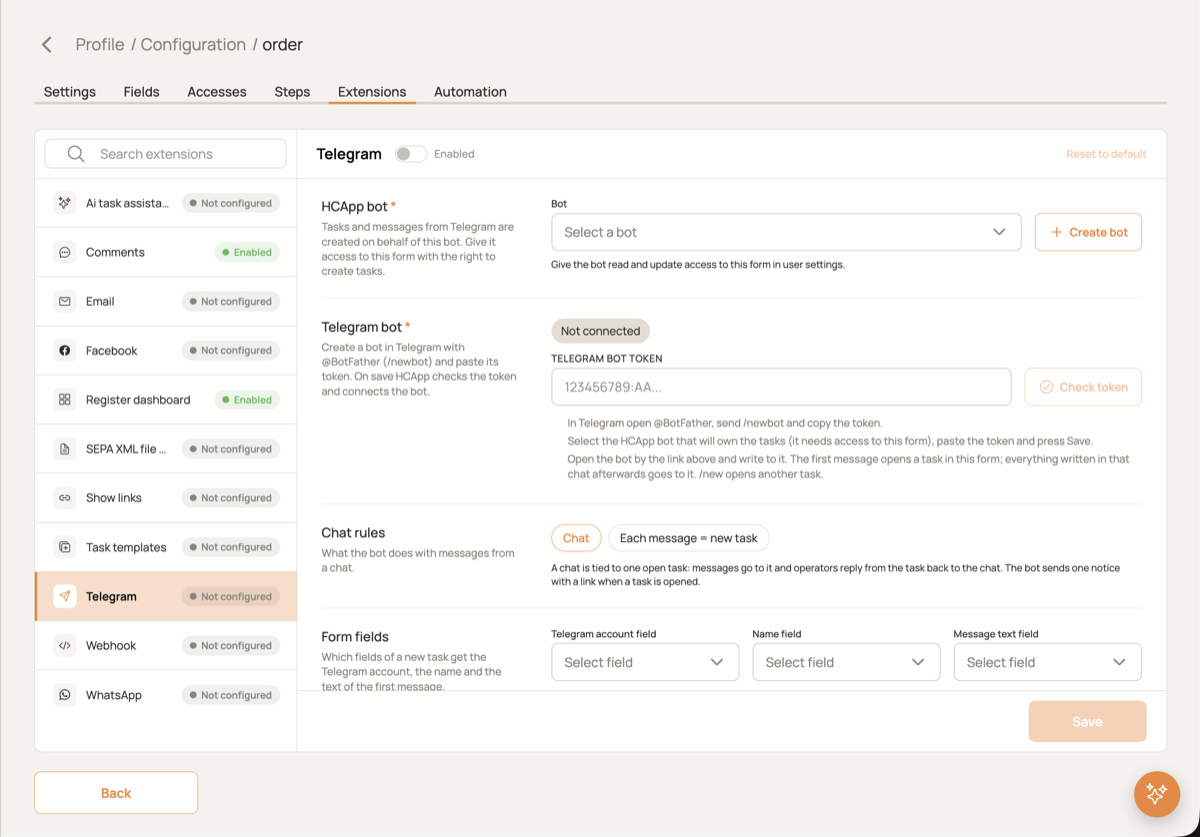
Connect in three steps
- Choose the HCAPP bot. Pick a user with the role
BOTor create one with the Create bot button. Give it access to this form with the right to create tasks (form → Access). Tasks and messages from Telegram are created on behalf of this bot. - Paste the Telegram bot token. Create a bot in Telegram with @BotFather (
/newbot) and paste its token into TELEGRAM BOT TOKEN. Check token asks Telegram who the token belongs to without saving anything. Press Save: HCAPP checks the token and registers the webhook itself. No chat IDs, no manual webhook registration. - Write to the bot. Open the bot by the link in the card and send it a message. The first message opens a task in this form.
The card shows the connection status, the bot link, Test connection and Reconnect. If something breaks later, the last error is shown in the same card.
Chat rules
| Setting | Meaning |
|---|---|
| Chat | A chat is tied to one open task. The bot sends one notice with a link when the task is opened and stays silent afterwards. /new opens another task for the chat. |
| Each message = new task | Receive only: every message opens its own task, nothing is sent from the task to the chat. |
| Only messages with a file | Each message = new task only. Messages without a file are ignored. |
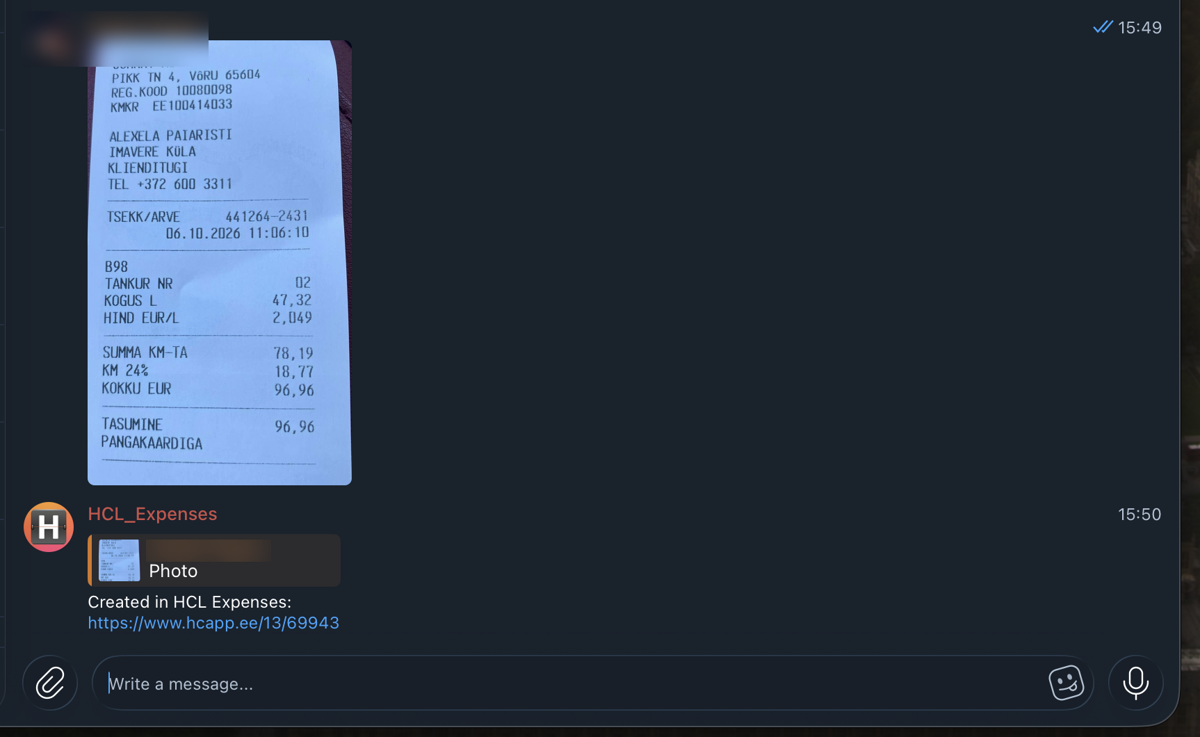
| Reply with a link to the task | Each message = new task only. After each saved message the bot answers Created in <form>: <link>. |
| Where to store files | Each message = new task only. In the message, in the task files, or in a Files field of the form. |
/start answers with a greeting and the channel rules once; it does not create a task.
An album (several files sent at once) becomes one message and one task with all the files. At most 5 files per message are accepted; the rest are skipped and the message says so. The file size limit is 20 MB, this is a Telegram limit.
Form fields
Choose which fields of a new task receive the Telegram account (@username or the numeric ID), the sender's name and the text of the first message. Use the account or name field in the workflow rules to route tasks to the right person.
In the task
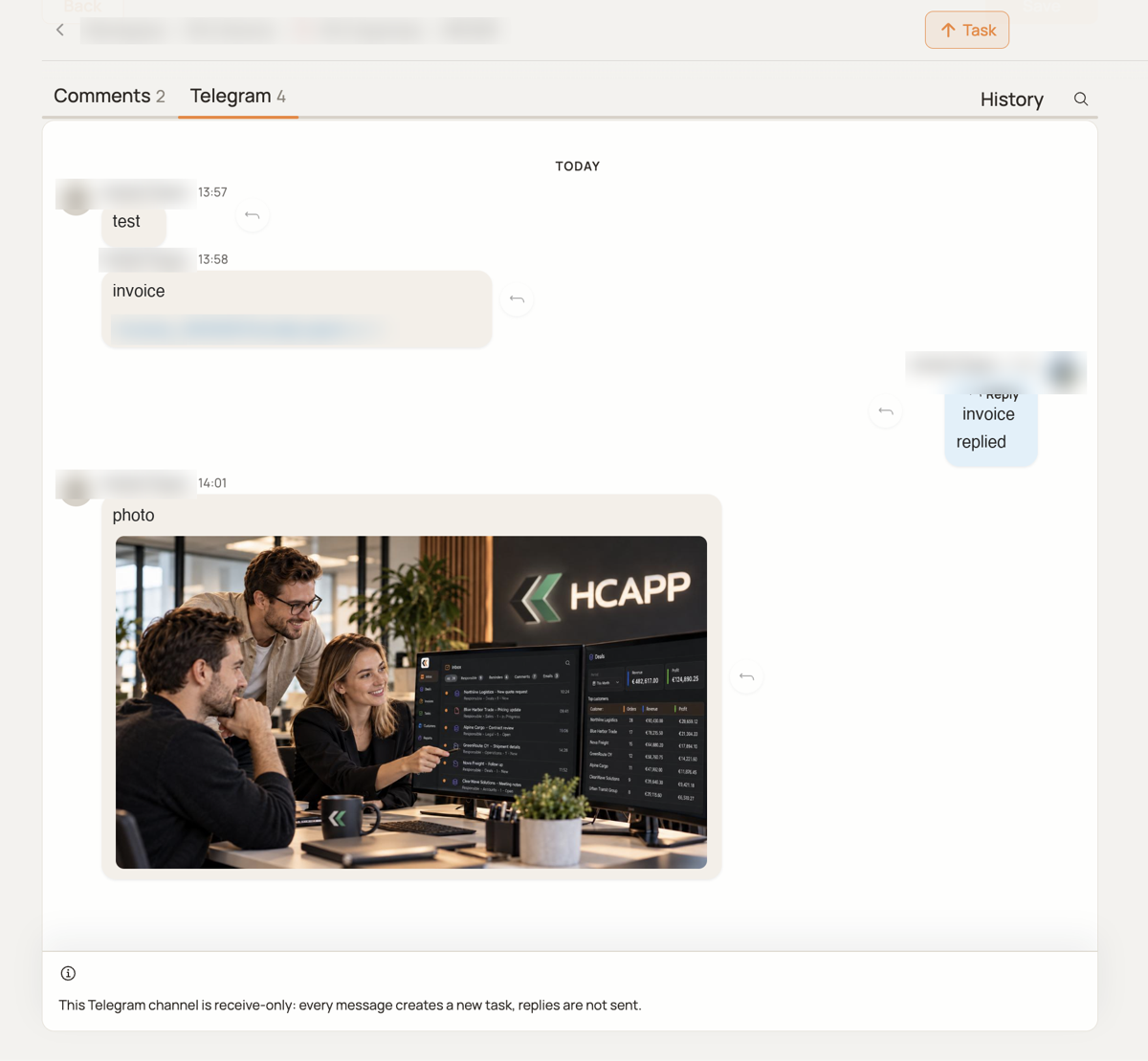
Messages are shown in the Telegram tab of the task as a chat: the customer on the left, operators on the right, files as attachments. In the Chat mode operators write in the composer at the bottom, in the Each message = new task mode the composer is replaced by a hint and replies are disabled.
Security
- The webhook is protected by a secret that Telegram sends with every update; it is rotated on every reconnect.
- The bot token is stored encrypted and never shown again after saving.
- Incoming updates are processed through the job queue with retries; nothing is lost if the server is restarted.