
Calendar
Calendar displays a form's tasks by date and time, with Month, Week and Day views. Use it for appointments, service jobs, trips and specialist schedules. It is a per-form extension, not synchronization with Google Calendar or another external calendar.
Enable and configure
A super-admin opens Profile → Configuration → form → Extensions → Calendar, enables the extension, configures it and presses Save.
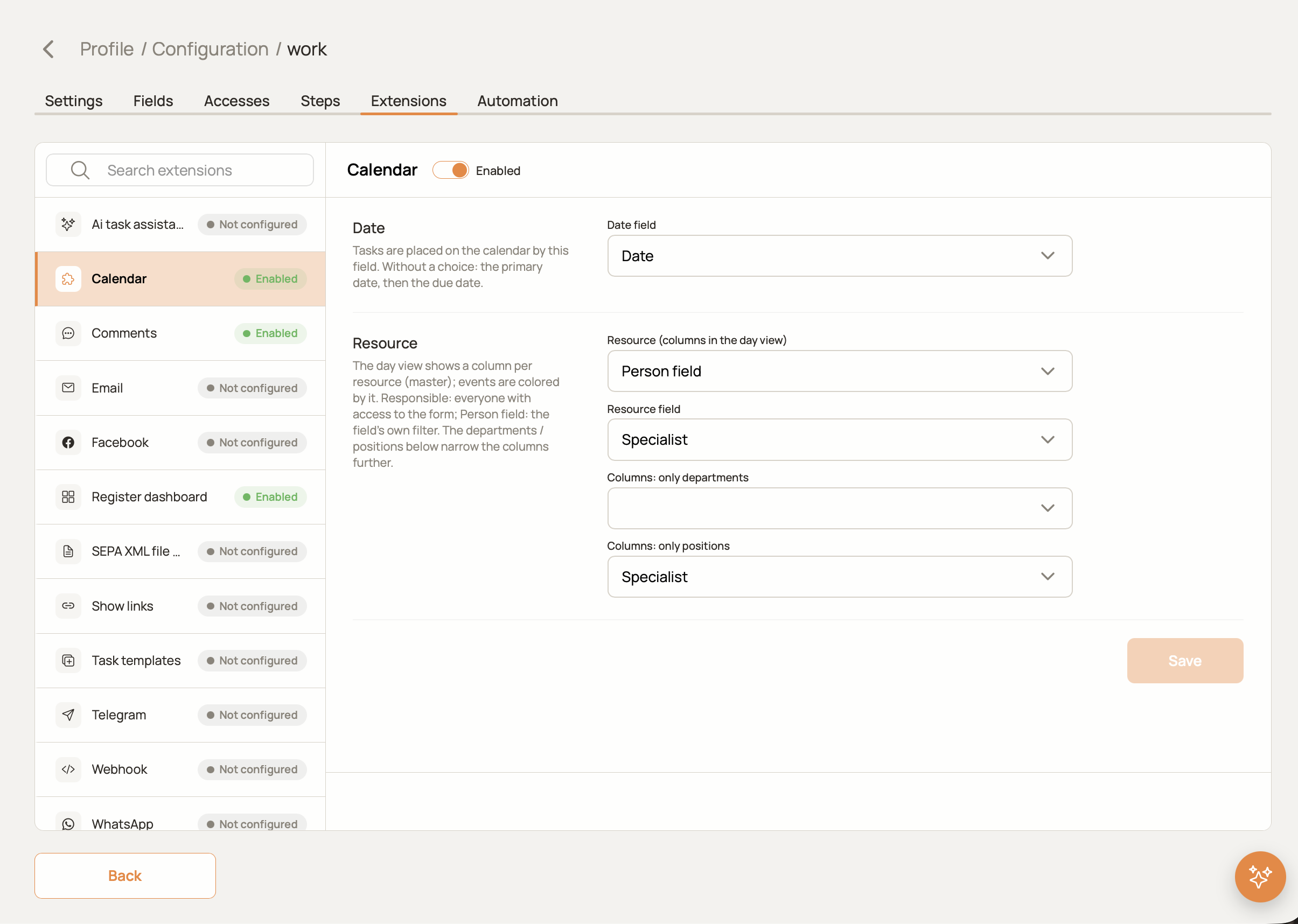
Date
Choose the Date field that places tasks on the calendar: a Date or Due Date field. Use a date with time or a time interval when jobs need timed slots. Without an explicit selection, HCAPP uses the primary date, then the due date, then the first Date field available. Check the selected field when a task appears on an unexpected day or has no calendar date.
Resources
Resources determine the filter and, in Day view, the columns. Events are coloured by resource.
| Resource mode | Meaning |
|---|---|
| Responsible | Group by the responsible user; the available users are based on form access |
| Person field | Use an existing Person field, for example Specialist |
| Form field | Use linked register records, for example masters, vehicles or rooms |
| None | Show tasks without resource grouping |
For Person or Form mode, select the corresponding Resource field. For user resources, Columns: only departments and Columns: only positions restrict the displayed users. Without calendar-specific filters, a Person field's own department/position filter is used. Calendar-specific filters take precedence. Bots and deleted users are excluded from user-resource columns.
These display filters do not grant access to a form or its tasks.
Use the calendar
- Open the form's register and click the calendar icon next to list/cards.
- Switch between Month, Week and Day; use Today and the arrows to navigate.
- Open the resource filter, search by name and select the specialists or resources to display.
- Click an event to open its task preview. Use Edit, Open or Open in new tab according to the actions available to you.
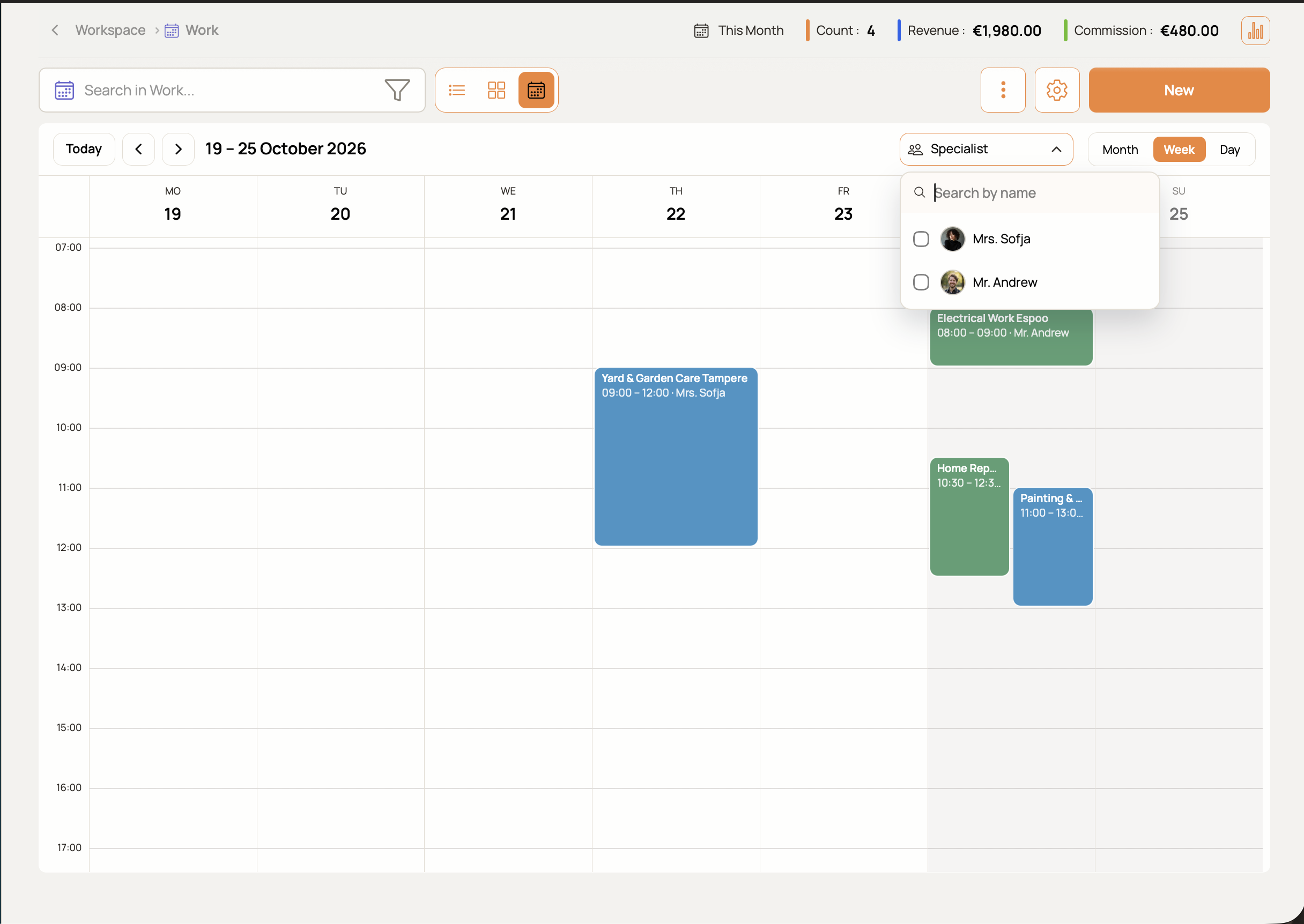
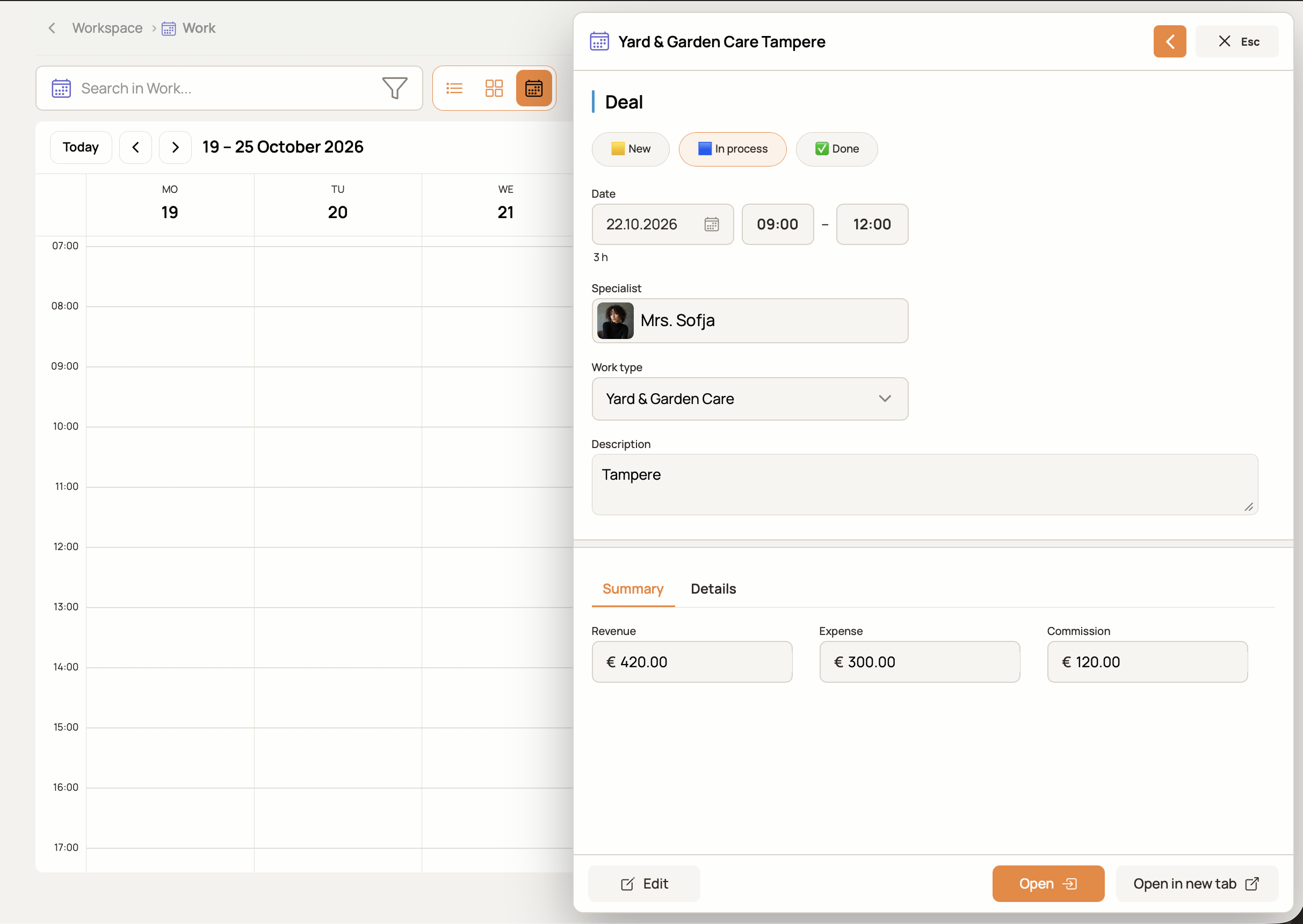
Fields and summary values in the preview come from your form configuration; the Work example above is not a mandatory task structure.
Example: specialist jobs
Add a date/time field and a Person field named Specialist to the jobs form. Select those fields in Calendar settings. Week view shows the jobs across the week; Day view can split them into specialist columns.
If specialists also need external personal cabinets, configure Portal User → Master in their register. This is a separate feature: enabling Calendar does not create accounts, and portal accounts are not required to use Calendar.
Working hours and time off
User resources use the working hours and absences saved in the user profile to display non-working periods. Set these in Profile → Users → user → Edit → Work.