
External integrations
HCAPP can exchange data with other systems: a website, an accounting system, a messenger, a script, or an AI agent. Use the Bot API for data operations, webhooks for events, and MCP for read-only analysis in an AI assistant.
| Direction | Tool | What it is for |
|---|---|---|
| From outside into HCAPP | Bot + Bot API | An external service creates, reads, and updates tasks |
| Read HCAPP data in an AI assistant | MCP (pilot) | Read forms, filtered task lists and comments using the bot's permissions |
| From HCAPP to outside | Form webhook | HCAPP tells an external service that a task was created, updated or finished |
| From HCAPP to outside | Bot webhook | HCAPP sends the bot every event addressed to it: a customer's message from a channel, a comment, an assignment. The way an AI agent listens to tasks |
Most integrations combine them: a webhook says "something happened in task 123", and the service then reads the task through the Bot API and acts.
Bots: the entry point for external services
A bot is a separate user with the role BOT. It is not a person: it is the account an external service works under. Everything the service does in HCAPP is done as this bot, so you always see who created or changed a task.
How it works:
- An administrator creates the bot in Profile → Users.
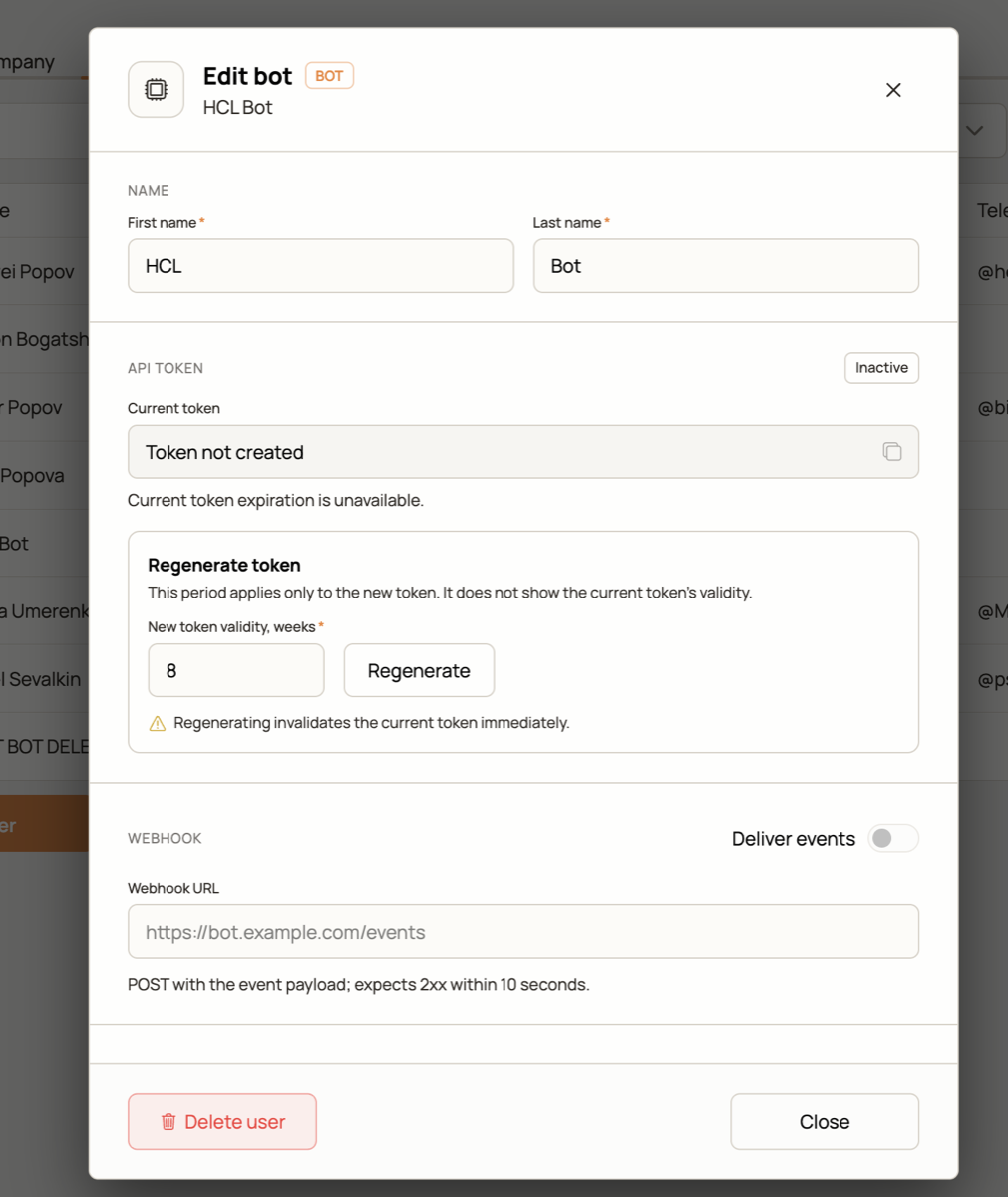
- The bot gets a token with a lifetime set in weeks. The service sends this token with every request. When the token expires, requests stop working until a new one is issued.
- Issuing a new token cancels the previous one.
- The bot sees nothing by default. It works only in the forms it was given access to, and with the rights set in that access.
Through the Bot API a bot can create tasks, read and list them, update fields, finish tasks, return them to a step, write comments, and upload files. See HCAPP Bot API.
Access for a bot
Access is granted per form in the form's Access tab, the same way as for a person. Besides the usual rights, two restricted ones are useful for bots:
- Read only: the bot reads tasks and comments and changes nothing. Suitable for reports and data export.
- Create only: the bot creates tasks and comments and uploads files but cannot read existing data. Suitable for a website form or an intake channel.
By default one bot can have access to at most 2 forms. If an integration needs more forms, create another bot.
How to connect a bot
- Open Profile → Users and create a user with the role
BOT. - Generate a token and choose its lifetime.
- Open the form → Access and give the bot access with the rights it needs.
- Put the token into the external service. It is sent as
Authorization: Bearer <token>. - Check the connection with
GET /bot/auth/verify.
Details: Users, Authentication, Rules and limits.
Webhooks: HCAPP notifies an external service
A webhook is a request HCAPP sends to your URL when an event happens. Your service does not have to ask HCAPP "is there anything new?" over and over.
Form webhook
Enabled in the form's Extensions tab. You set the URL and choose the events:
- a task is created
- a task is updated
- a task is finished
HCAPP sends a request to the URL with the event name (create, update, or finish). You can also turn on sending the task ID and form ID, and add a token that HCAPP will pass in the Authorization header so your service can check that the request really comes from HCAPP.
The webhook is a signal, it does not carry the task's data. To get the data, read the task by its ID through the Bot API.
Button with a webhook
A Button field can call a URL when a user presses it. Use it when the action must be started by a person: "send to accounting", "generate a document", "start a check".
Bot notifications
A bot can have its own webhook URL, set in the bot's card in Profile → Users (Webhook section, Deliver events toggle). Every notification addressed to the bot is sent there as a POST with a JSON body, instead of an e-mail or a Telegram message a person would get. This is how a bot or an AI agent reacts to what happens in tasks.
The bot receives an event when:
- it is the responsible or a participant of the task and someone writes a comment, sends a message or moves the task;
- a messaging channel (Telegram, WhatsApp, Facebook) that works on behalf of this bot receives a message from a customer;
- it is mentioned in a comment.
The bot does not receive events about its own actions, so an agent never answers itself.
Body of the request:
{
  "event_id": "task-notification:...",
  "event_type": "RESPONSIBLE",
  "notification_id": 1234,
  "recipient_user_id": 38,
  "company_id": 3,
  "form_id": 13,
  "task_id": 69941,
  "target_id": 7727,
  "form_name": "Expenses",
  "step_name": "Open",
  "content": "text of the message or comment",
  "author_name": "Ann",
  "subject": null
}
target_id is the ID of the message or comment, author_name is the person who wrote it (for a channel message, the customer). The webhook is a signal: to get the full task, read it by task_id through the Bot API.
Delivery: your endpoint must answer 2xx within 10 seconds. Otherwise HCAPP retries after 30 seconds, 2 minutes, 10 minutes and 24 hours. After five failed attempts the webhook is switched off in the bot card and has to be turned on again.
What to choose
- Analyze tasks in an AI assistant → MCP and AI assistants. The pilot provides read-only access and requires administrator setup.
- A website or another system must create tasks in HCAPP → a bot with "create only" rights.
- You need to export data to a report or another system → a bot with "read only" rights.
- An external system must react to changes in HCAPP → a form webhook, plus a bot to read the task.
- An employee must start an external action from a task → a button with a webhook.
- An AI agent works with tasks and answers in comments → a bot with access to the form and a bot webhook.
Safety recommendations
- Create a separate bot for each integration. If one token leaks, you revoke only that integration.
- Give a bot access only to the forms it needs and the minimum rights.
- Do not set a token lifetime longer than necessary, and reissue the token if it could have been exposed.
- Keep tokens in the external service's secret storage, not in chats or documents.
- To stop an integration at once, block the bot or remove its access to the form.